
 Create
 Create games by talking: Chat with Ray and ask for anything
One more question, a different level, images, voice or a crossword with the same content: Your AI assistant now does it all, and better
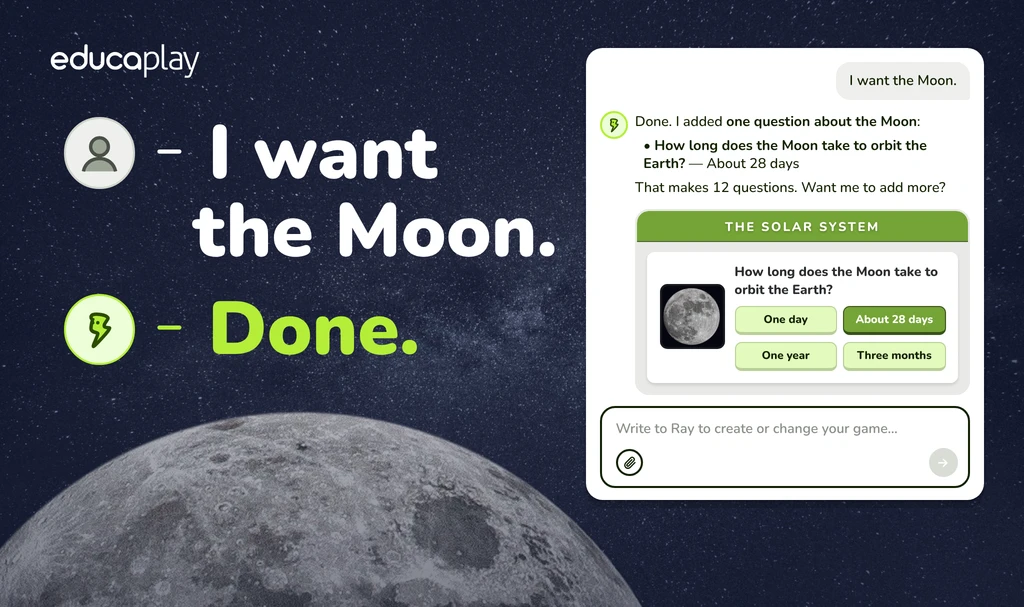
In class you do it all by talking: You explain, ask questions and correct as you go. Now Educaplay’s AI game creator works the same way. You tell Ray, your AI, what your students should learn, the game appears in front of you and you keep asking for changes until it’s the one you want. Ray assists you from start to finish: From the first idea until you publish, inside the editor.
You say it, you see it done
You type “A quiz about the solar system for 6th grade”. Ray builds the game and shows it in a card, ready to play. You look at it, something is missing, and you type: “I want the Moon.” Done: Question 12 is now about the Moon, with its image, its right answer and its three wrong ones. “Publish it.” It asks you to confirm, and that’s it. Every change saves itself and the preview updates in the same conversation.
You asked for the Moon. You got it.
Ray creates 19 of Educaplay’s game types (every one except the Interactive Map; when it first arrived it handled only a few) and does whatever you ask about them in your own words: More questions, a different difficulty, another language, images, audio, classification or publishing.
Ray assists you from start to finish
Until now Ray worked like a button: You gave it a title or a PDF and got a game back. Whatever came next was on you. Now it takes part in the whole process and, on top of that, it’s smarter: It runs on a much better AI model, so it understands more nuanced requests and writes better questions. You can ask for anything related to the game:
- More content, or less: Add five questions, remove the duplicates, rewrite the third one.
- Another level or another language: Adapt it for 8th grade, switch it to Spanish.
- Images: It searches Educaplay’s image bank and a stock photo library, and places them on the items you name.
- Audio: It generates the voice for your texts, in the game’s language or another one.
- Video: Paste a YouTube link and build a Video Quiz on it.
- Classification and publishing: It fills in level, subject and labels, and publishes once you confirm.
- One game from another: You finish a Word Search and say “now make me a Crossword with the same content.”
If something is missing when you hit publish (a title, a description, a half-written question), Ray tells you what it is and offers to finish it. You decide whether you do it or Ray does.
Give it your notes: PDF, Word, PowerPoint, Excel and images
Attach the material and Ray works from it, like when it turned your PDF into a crossword, only now as a conversation. A unit in PDF, a class presentation, a spreadsheet of vocabulary, a photo of a textbook page. You can also pick documents you already uploaded to Educaplay, without uploading them again.
Images do double duty: Ray can see them, and it can put them in the game (“this photo goes on question 3”). You can attach up to 3 files per message on the Basic plan and up to 10 on the Advanced, Academic and Commercial plans.
It works with the games you already have
Open any game, one you built by hand or one made with the old Ray (yes, that Dictation too). Its card appears in the conversation with concrete suggestions: What it needs before it can be published, the classification still missing, the text that came out short. Ray doesn’t spend a single use until you write.
That landforms quiz from three years ago, say. You open it and type: “Put the Andes where the Alps are and add Aconcagua.” Done. Ray moves mountains; you never touched the editor.
One heads-up: On published games every change saves to the live game, just like in the editor you know.
And if you’d rather fix something yourself, the editor is still there
The conversation with Ray and the manual editor share one screen, each in its own column, and work on the same game. The bar on the right holds Chat, Editor, Options, Preview, Help and Publish. Change an answer by hand and Ray sees it. Let Ray add questions and they show up in your editor.
Every question, answer and image has an Ask Ray button that starts the sentence in the chat for you (“About question 3:”) so you only have to finish it. Undo and redo work as always.
Ray is in every plan
On the Basic plan you get a trial allowance of Ray that doesn’t renew, and a meter shows you how much you have left. The Advanced, Academic and Commercial plans get far more uses (renewed every 30 days), more open conversations and up to 10 attachments per message. Compare the plans.
And the box on Educaplay’s home page now takes you straight into this conversation: Type what you want your students to learn and carry on with Ray in the editor.
Start by talking
Open a game you left half-done and type “What is this game missing?”. Or start from scratch: Describe the topic and the level the way you’d tell a colleague, and in a minute you have something to try.
Open the editor, tell Ray what your students should learn (topic and level) and the game appears in the conversation, ready to play. Then ask for changes in your own words: More questions, another level, images, voice or publishing it. You can try it free on the Basic plan.
No: The manual editor stays on the same screen, in the next column. Every tab of the old editor (Create, Information, Options, Preview, Publish) has its place in the right-hand bar, and a notice when you open it tells you where each one went.
19 of Educaplay’s 20 types: Every one except the Interactive Map. On the start screen, the types Ray can create carry the AI tag.
PDF, Word (docx), PowerPoint (pptx), Excel (xlsx), text (txt, md, csv) and images (png, jpg, webp). Not audio or video; for a Video Quiz, give it the YouTube link.
No. Only when you ask, and only on the texts you name. Voice generation spends your audio quota, so Ray never generates it unasked.
Yes, to try it out: The Basic plan has a trial allowance that doesn’t renew, and a meter in the chat shows you how much you have left. On the Advanced, Academic and Commercial plans the allowance is much larger and renews every 30 days.
Click a game-type card on the start screen and the manual editor opens, without going through the chat. The chat stays one click away in the right-hand bar, in case you change your mind.