
 Create
 No email, no password: Know who’s playing and keep their names private
Add the whole class at once, groups, QR cards and games assigned to the right students: Student profiles with no account, run by you
Twenty-five students play your Word Search and your Reports show twenty-five “Anonymous”. Or you ask them to type their name and you get “Lucas”, “lucas”, “Lukas” and “Lucas S”. The alternative, an account with an email and a password, is a non-starter in elementary school and a lost morning in middle school. And you still need to identify students without email or passwords.
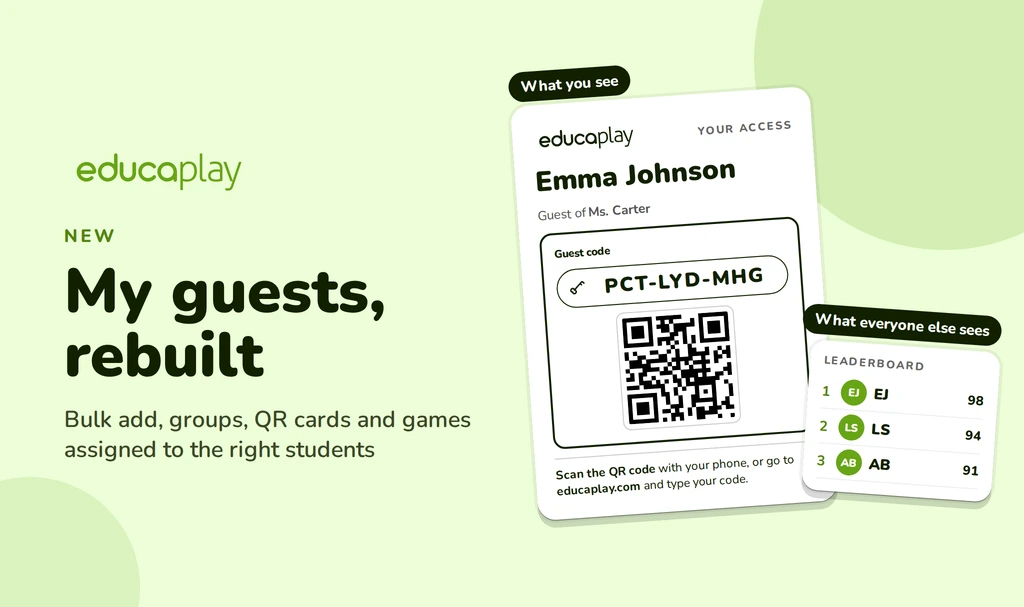
My guests solves exactly that: It’s a system to identify your students without email or passwords. You create one profile per student, name it however you like, and that profile is theirs all year: Every game they play is saved under their name in your Reports. Nobody asks them for personal data, and only their initials show in public. You run it from start to finish, and the new version makes it much easier for you and for them.
What a guest is: Identify students without email
A guest is how you identify students without email on Educaplay: A player profile that lives inside your account. It has a name you choose, a nine-letter code, a direct link and a QR code. It has no email and no password, because it doesn’t need them: Those three keys always open the same profile, from any device.
Whatever the student does with that profile stays with you: Their scores, their attempts, even the games they create, which come to you so you decide whether they get published. If you delete the guest one day, their data goes with them.
How they get in: One click
Each student picks the key that suits them:
- Direct link: They save it as a browser bookmark or as an icon on the tablet’s home screen and get in with a tap. Before entering, a screen confirms which name they’re about to play as, so nobody ends up in the profile of the kid next to them.
- QR code: They scan it with a phone or tablet and it opens the same link.
- Code: Nine letters, like PCT-LYD-MHG, typed in Log in or on the game screen. Upper or lower case and dashes don’t matter.
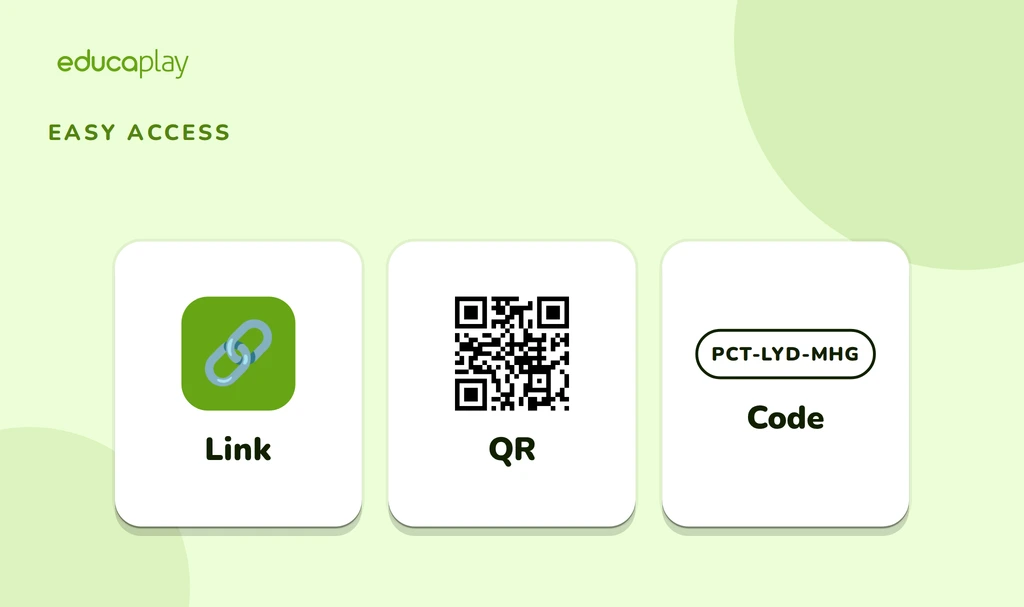
Once in, they land on your profile. And under My access they always have their link, QR code and code, in case they switch devices one day.
How you run it: The whole class in a minute
Click Add guest and choose: Paste a list of names (one per line or comma-separated), import a CSV or Excel file with your class roster, or create a number of guests and name them later. Up to 500 at once, already sorted into their group.
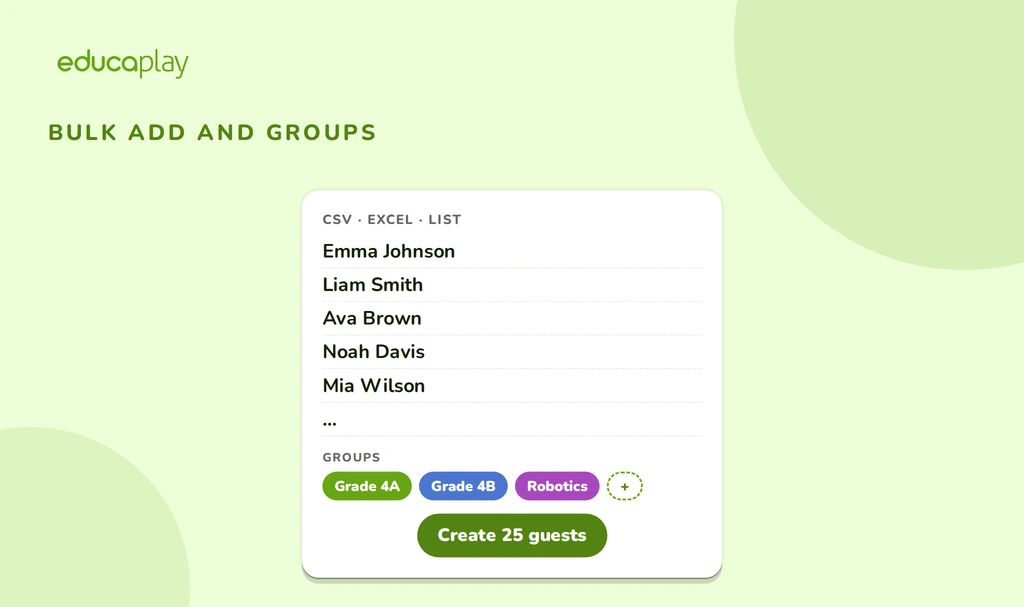
Groups work like tags: A guest can be in Grade 4A and in the robotics club at the same time, and deleting a group deletes nobody. Use them to filter the list, to filter your Reports and to assign games to a whole class in one go.
Assign games and lists to the right students
Assign your games and lists to one student, to a whole group or to All my guests, which also covers the guests you add later. Do it from My guests, with Assign games, or from your own games and lists, with Assign to guests.
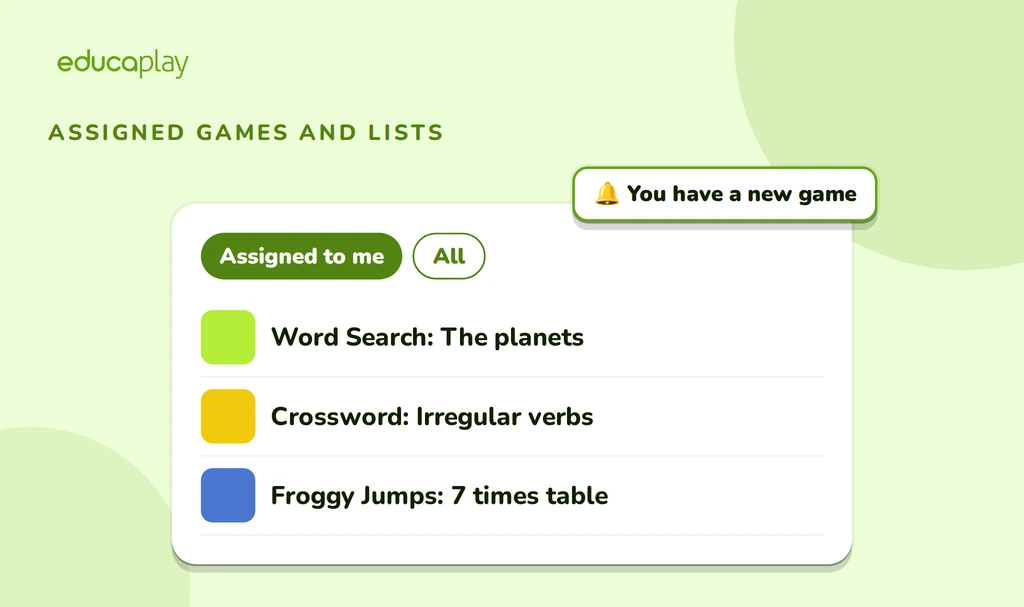
For the student, the effect is that when they open your profile they see their own games first, under Assigned to me, instead of scrolling through everything you’ve published. Assign them something new and Educaplay tells them the next time they get in. And if you publish a lot, Customize games lets you decide who your new games are assigned to by default.
Hand out access on paper or on screen
Select several guests and click Download cards: A PDF with 1, 4 or 8 cards per sheet, each with the student’s name, code and QR code. Print, cut and hand them out on day one. Download list gives you the same in Excel, with each student’s groups, in case you’d rather send it through whatever channel your school uses.
You know who got in and who played
Each guest’s avatar stays grey until they use their access and turns green the moment they get in. You get a notification the first time they enter and every time they play one of your games. Next to those who have played, a button takes you straight to their scores, and in Reports you can keep only your guests and filter them by group.
Their name, for your eyes only
This is the piece that changes everything. The name you give a guest is seen only by you and by them. To the rest of the world, “Emma Johnson” is “EJ”: Rankings and any public screen show initials only. You still see the full name in My guests, in your Reports and in rankings.
If you want the class to see their classmates’ names in a game’s ranking, set that game to Guests Only and turn on Show names: Only your guests will see them, nobody else. Educaplay never asks your students for an email, a password or any other data.
Start with your class
Open My guests from your account, paste your class roster and download the cards. The Basic and Advanced plans include up to 5 guests; the Academic and Commercial plans, as many as you need. Every step is in the Support Center.
No. All they need is their guest link, QR code or code. Educaplay doesn’t ask them for an email, a password or any personal data.
Only you and the student themselves. Publicly, their initials show. If you turn on Show names in a game with Guests Only visibility, your guests will see full names in that ranking, and nobody else.
Up to 5 on the Basic and Advanced plans, and unlimited on the Academic and Commercial plans. With a list or a file you can create up to 500 at once.
Yes. A guest can be in several groups or in none, and if you delete a group its guests stay put.
No. Assigning decides what each guest sees first. If you want a game to be visible only to your guests, set its Visibility to Guests Only (on the Academic or Commercial plan).
Yes, with the guests API: Create up to 500 in a single request, manage groups and get each guest’s link, QR code and code. Available on the Academic and Commercial plans.