
 Create
 Multiplayer comes to Educaplay: Turn your game into an event
Your Froggy Jumps become live contests: You call the shots and everybody plays together
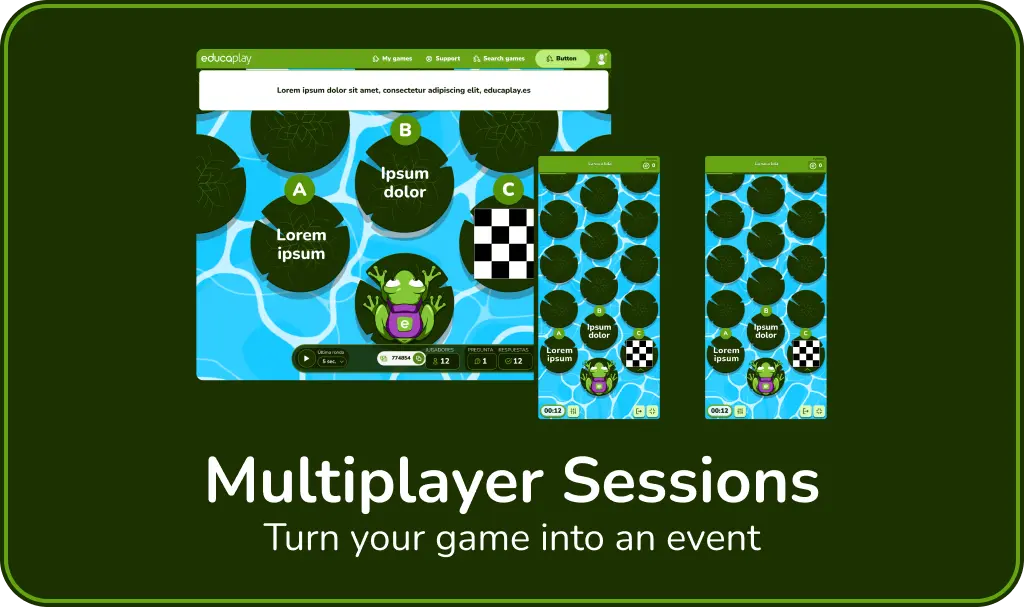
Live Multiplayer Sessions have arrived at Educaplay: the format is now available for all Froggy Jumps. Turn any room into a contest. You host the experience from a shared screen, and players join from their own devices. The faster they answer correctly, the more points they score.
Set up in an instant
There’s nothing to install or set up. You have several ways to start:
- From My games: Every Froggy Jumps has the Multiplayer Session button. One click and your room is ready.
- From the game page: The Host Session banner does the same.
- Want to try it without creating anything? Click the button in your profile banner or in the home-page section about Multiplayer, and you’ll play a demo with the game Animal Wisdom.
The screen shows, in large print, a 6-digit Game Pin, a direct link and a QR code. Each player joins however they like —by typing the PIN at game.educaplay.com, scanning the QR code or opening the link—, picks a nickname and they’re in. No account needed.
You set the pace
During the session, you set the pace from the screen. There’s no fixed time limit: the question stays open until everyone has answered, but if you want to speed things up, you start a countdown of 10, 20, 30 or 60 seconds.
You’ll always see how many players there are and how many have answered, and when each question closes, the answer percentage and the updated leaderboard are shown.
In each session, questions and answers are shuffled, and players can send emojis to liven up the mood. If at any point you’d rather not use these options, you can turn them off.
By default, after each question you click to move from the answer percentage to the leaderboard, and from there to the next question. If you’d prefer these steps to be automatic, you can set that in the options too.
One session, two scores
There are two scores that coexist without getting in each other’s way.
The Arcade score rewards speed and is the one that orders the leaderboard and the podium: the sooner you answer correctly, the more points you add. And the usual Accuracy score, the percentage of correct answers, is the one saved in your Reports, just like in any other game.
A grand finale
When the questions run out comes the star moment: the podium with the top three, with a switch to show the full leaderboard.
From there you also have a Summary question by question, in case you want to review what got people stuck the most, and a Ratings section where the players themselves rate the experience.
When does it come in handy?
The possibilities are many: a race-against-the-clock review before an exam, a warm-up to kick off the class, the close of a unit, a tournament between groups, an activity in a corporate training session or, quite simply, a way to bring energy to a “dense” topic.
Where there used to be a worksheet, now there can be an event.
Try it now!
The best way to understand it is to play it. Open any of your Froggy Jumps, click Multiplayer Session and project it, or just click the button below. Get the big screen ready: your next class is going to look like a game-show set.
For now, only for Froggy Jumps games. Every Froggy Jumps in My games has its Multiplayer Session button.
No. They play from the browser on their phone, tablet or computer by entering with the Game Pin, the link or the QR code, and they just need to pick a nickname. Creating an account is optional.
Not by default: the question stays open until everyone has answered. If you want, you start a countdown of 10, 20, 30 or 60 seconds to close it.
The session itself is not saved as such, but each identified player’s performance is kept in your Reports, just like in any other game of that Froggy Jumps.
In a Challenge each player takes part whenever they can, at their own pace. In a Multiplayer Session everyone plays at the same time, live and hosted by you from a shared screen.